Vavus KeyboardJune 18, 2026
Use Vavus Keyboard in everyday apps: WhatsApp, Gmail, Slack, docs, and forms
The strongest translation keyboard use case is simple: keep dictation and translation inside the everyday apps where people already type.
Meet Vavus Guard, our defence system against malware Discover
The strongest translation keyboard use case is simple: keep dictation and translation inside the everyday apps where people already type.
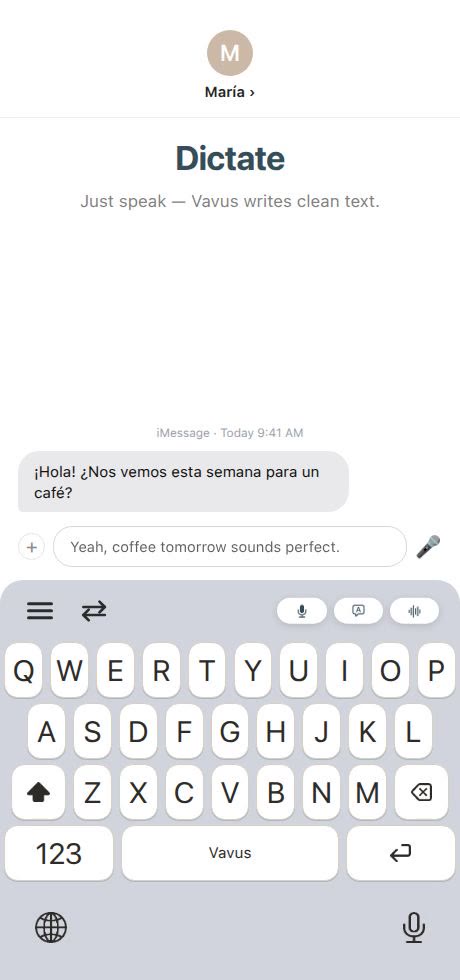
The strongest case for Vavus Keyboard is not one niche workflow. It is the fact that multilingual writing happens everywhere: WhatsApp, iMessage, Gmail, Outlook, Slack, Discord, Notion, Google Docs, web forms, CRMs, support tools, school portals, and social apps.
If a language tool only works inside its own app, the user has to leave the conversation. A keyboard changes the placement. Dictation and translation move to the field where the words are already being written.
The old workflow is slow:
Select or copy text.
Open a translation app or browser tab.
Paste the source text.
Choose languages.
Translate.
Copy the output.
Return to the original app.
Paste, edit, and send.
That is too much movement for a message that may be only two sentences long. It also creates more room for mistakes: wrong thread, wrong language, missing context, stale copy, or an awkward literal translation.
With Vavus Keyboard, the user can stay closer to the original app:
Dictate a first draft.
Translate the message into the target language.
Reverse translate text written in the user's preferred language.
Review the result.
Send from the same workflow.
This is useful on mobile because most communication starts in a keyboard. It is useful on desktop because hotkeys can bring dictation and translation into documents, messages, and forms without turning every sentence into a browser-tab task.
The same language layer can support very different jobs:
WhatsApp or iMessage: Reply to family, travel hosts, local services, or customers.
Gmail or Outlook: Draft polite work emails in another language.
Slack or Teams: Send updates to multilingual teammates.
Google Docs or Notion: Dictate notes, translate short sections, or comment across languages.
CRMs and support tools: Capture notes and customer replies faster.
Web forms: Write addresses, explanations, requests, and notes without copy-paste.
Social apps: Draft multilingual posts, replies, and direct messages.
The point is not that every app becomes a translation app. The point is that every text field can become easier to use across languages.
The keyboard is best for fast writing. Vavus AI is better when the workflow becomes bigger: live conversation, document translation, files, calls, saved messaging, AI chat, or a longer translation history.
The two surfaces should work together. Use the keyboard for the moment of writing. Use Vavus AI when the task needs a fuller workspace.
No. Messaging is the obvious use case, but the same idea applies to email, documents, web forms, support queues, CRMs, notes, and social apps.
Because the tab still forces copy-paste and context switching. A keyboard keeps the language tool closer to the field where the work is happening.
Both. The same workflow helps support agents, sales teams, students, travelers, families, creators, and anyone who writes across languages.