Vavus AI
Vavus AI mobile walkthrough — translation, messaging, calls, documents
Translation, messaging, calls, documents, and Vavus AI in one mobile app.
Duration: 44 seconds. Download MP4.
What this demo shows
This mobile walkthrough shows Vavus AI as one workspace for language work. It moves through the home screen, real-time voice translation, Vavus AI chat for writing and summarizing, glossary and phrasebook tools, translated messaging, live call translation, and document or photo translation for signs, menus, and files.
More Vavus demos

Vavus Keyboard mobile walkthrough — type, talk, and translate in any app
Type, talk, translate, and ask Vavus AI from the keyboard in any app.

Vavus Keyboard desktop walkthrough — hotkeys, dictation, translation
Use Ctrl+D, Ctrl+T, and Ctrl+R to dictate and translate from your computer.

Vavus AI desktop walkthrough — dashboard, translation hub, AI tools, history
Run translation, Vavus AI, and history workflows from the desktop.
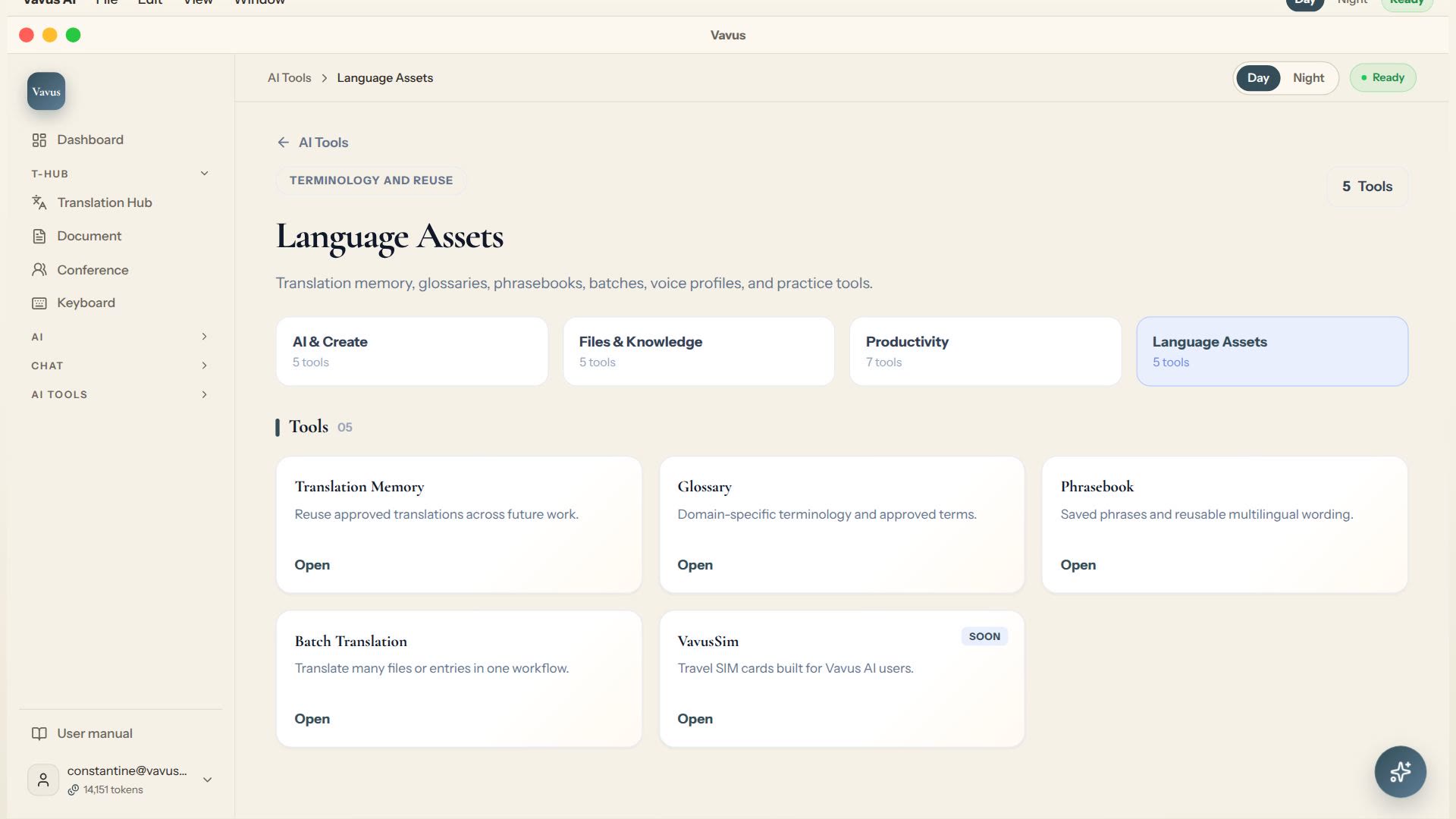
Vavus AI translation tools — glossary, memory, phrasebook, batch translation
Keep translation assets, glossary, memory, phrasebook, and batch work in one place.
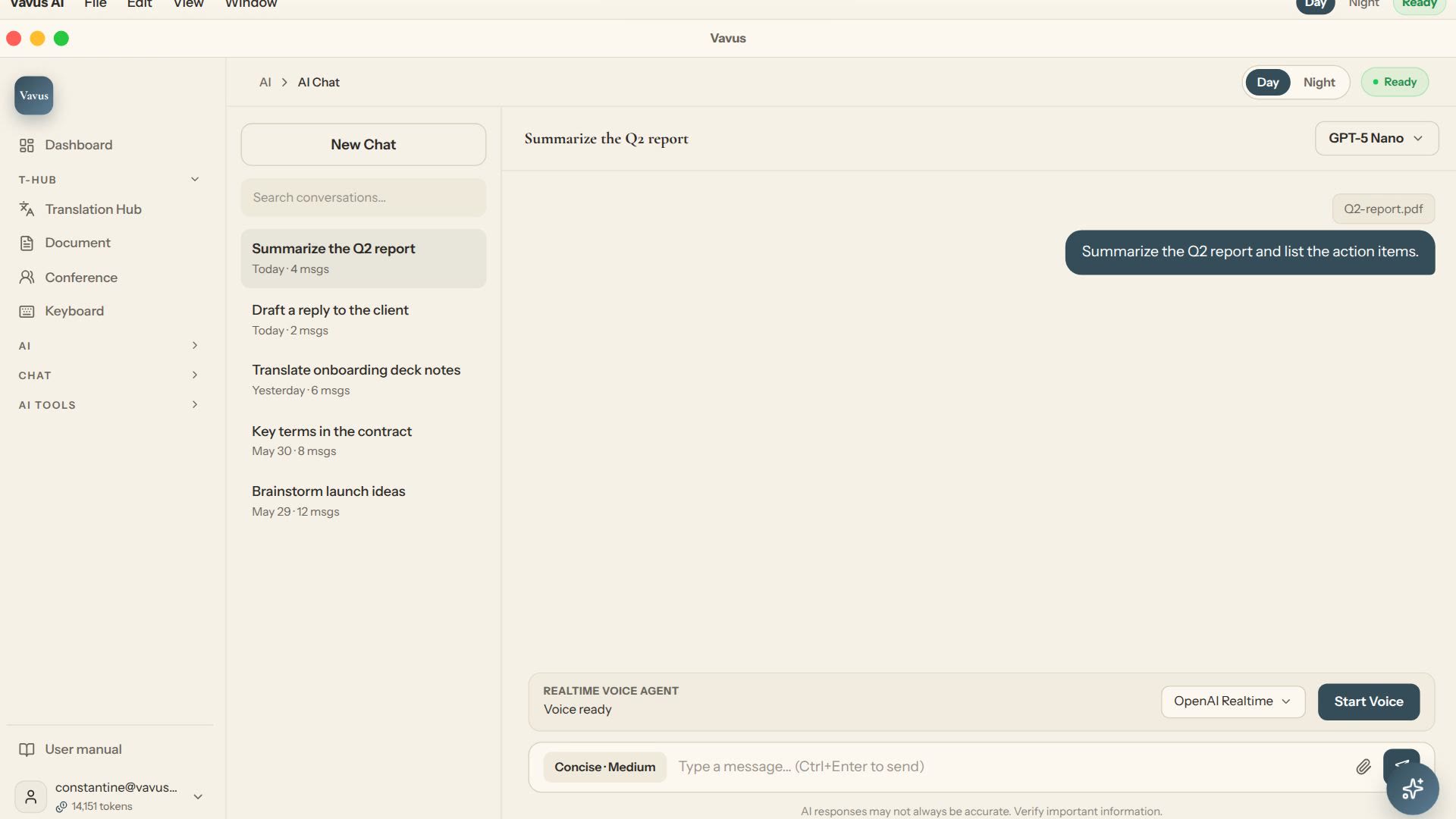
Vavus AI chat — multilingual writing and reasoning
Ask, draft, translate, and refine without leaving the Vavus AI workspace.
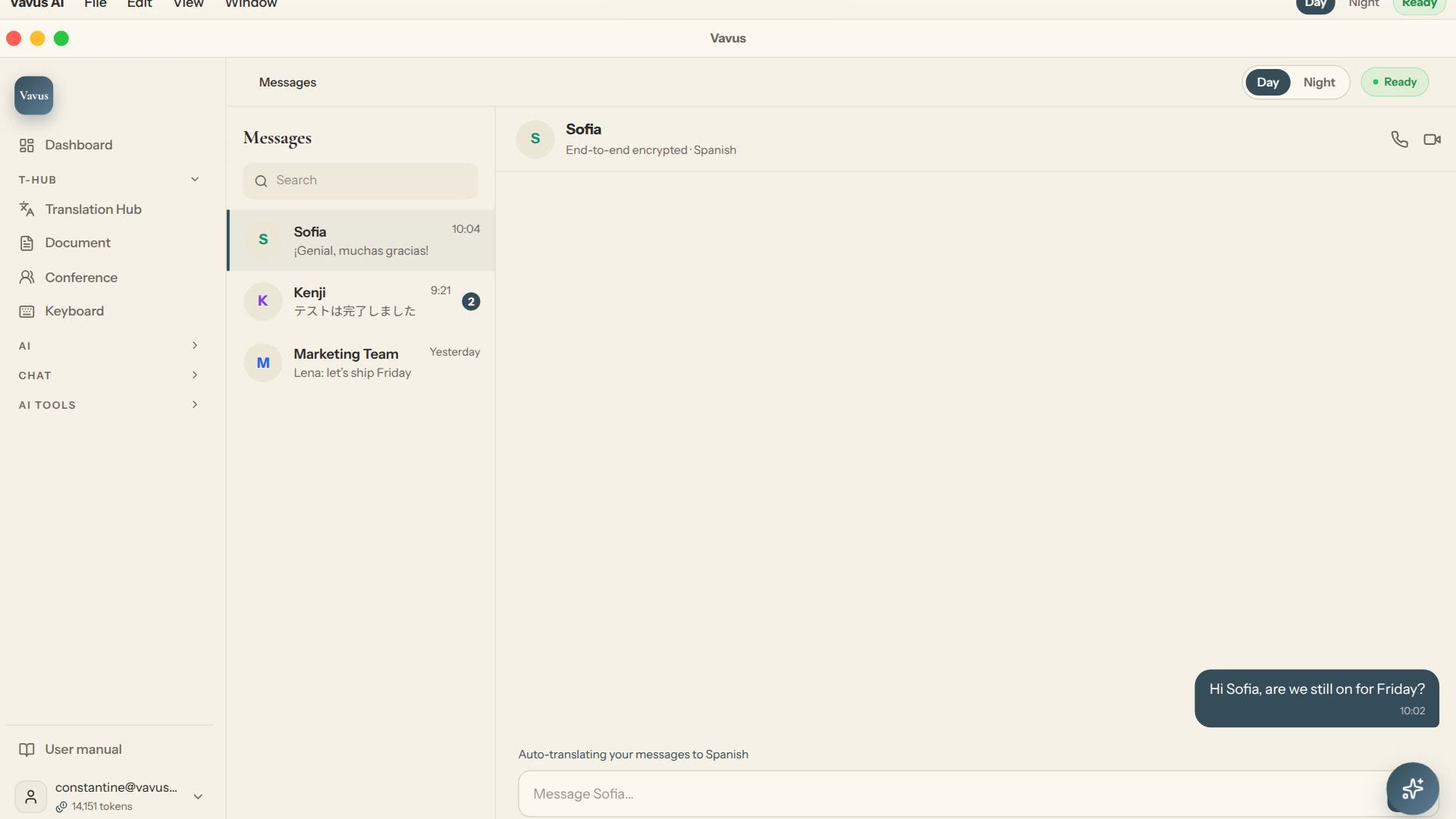
Vavus AI multilingual messaging — translated conversations
Message across languages while the conversation stays readable on both sides.