Vavus Keyboard
Vavus Keyboard on iPhone — translate inside any app
Translate inside WhatsApp, iMessage, Slack — anywhere you type on iPhone.
Duration: 12 seconds. Download MP4.
What this demo shows
This 12-second loop shows the iOS Vavus Keyboard in use. After installation via Settings → General → Keyboard → Keyboards, the user switches to it from the globe icon inside any text field. The keyboard shows the standard letter layout with three additional keys: microphone (dictation), translate (translate the typed or dictated text into a target language), and reverse translate (translate the other direction). Translations land directly in the field, replacing the source text without any clipboard copy-paste. Works the same in iMessage, Mail, Notes, Safari, third-party apps — anywhere iOS exposes a text field.
More Vavus demos
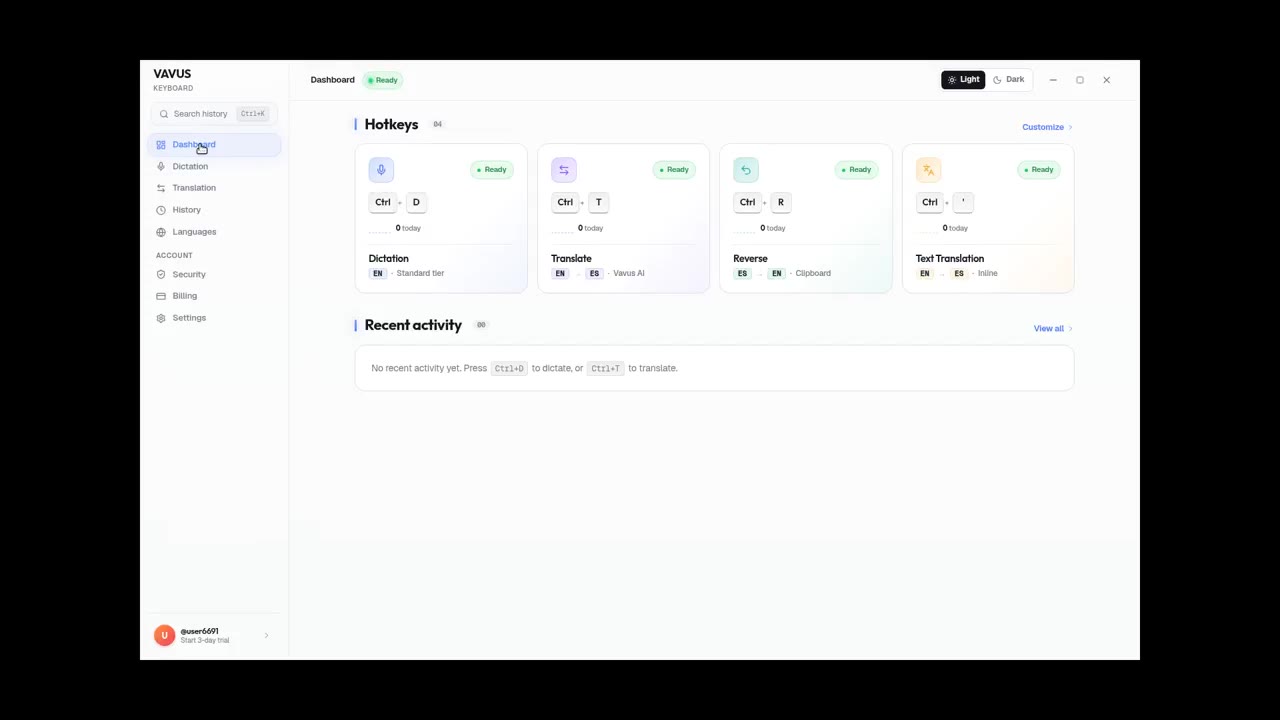
Vavus Keyboard on desktop — dictation + translation demo
Dictate, translate, reverse-translate from any desktop app — no copy-paste.
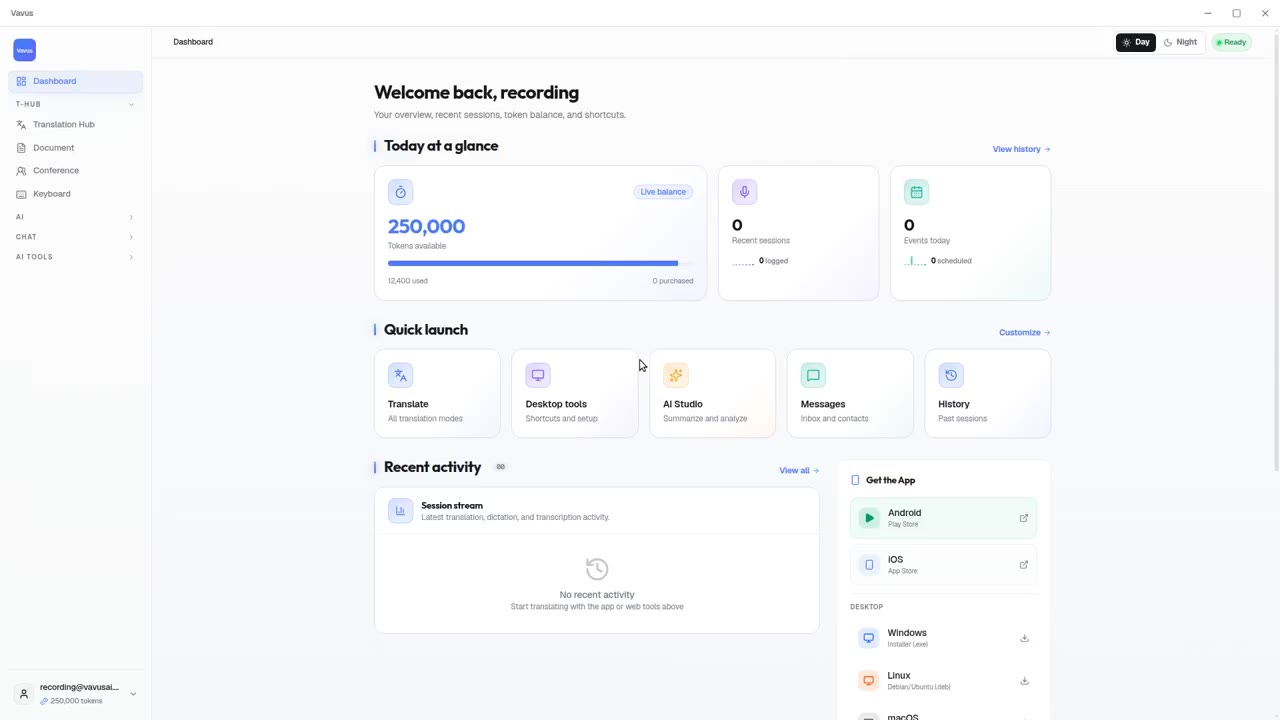
Vavus AI on desktop — live translation workflow
Vavus AI on desktop. Live translation, AI chat, messaging, and history in one workspace.
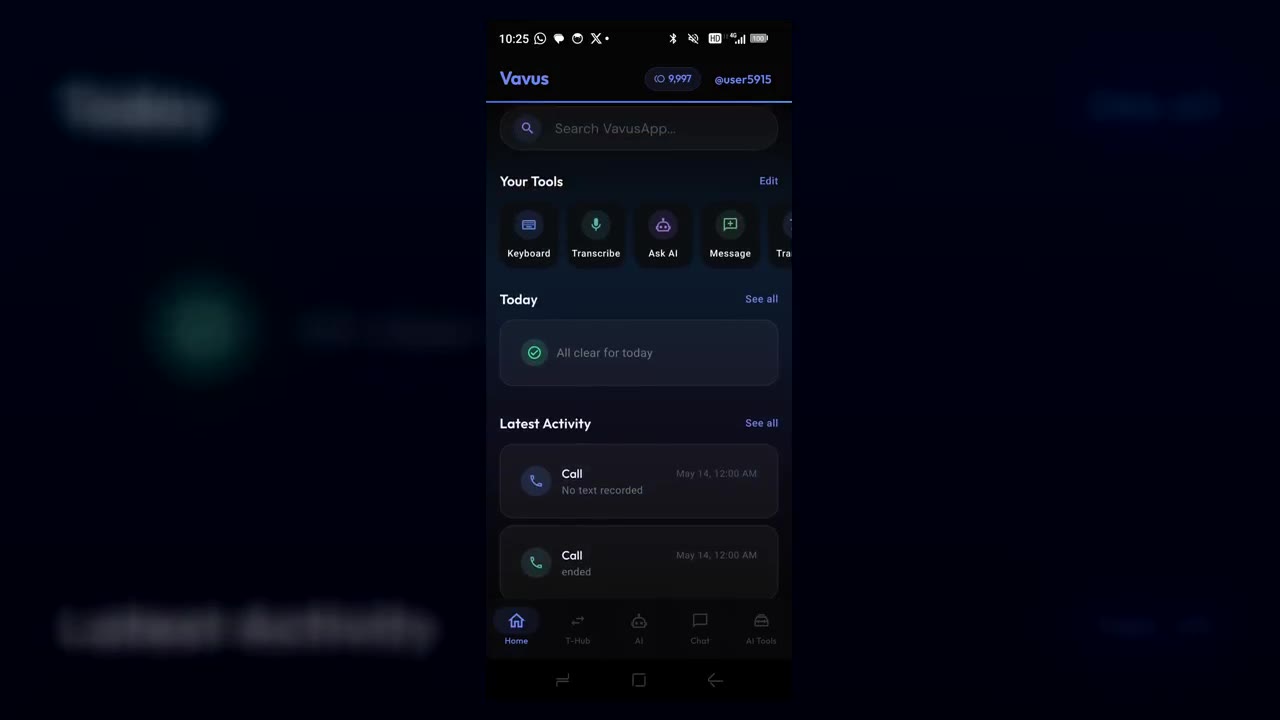
Vavus AI on iPhone — voice translation in your hand
Talk to anyone, in any language. The whole Vavus AI super app in your pocket.
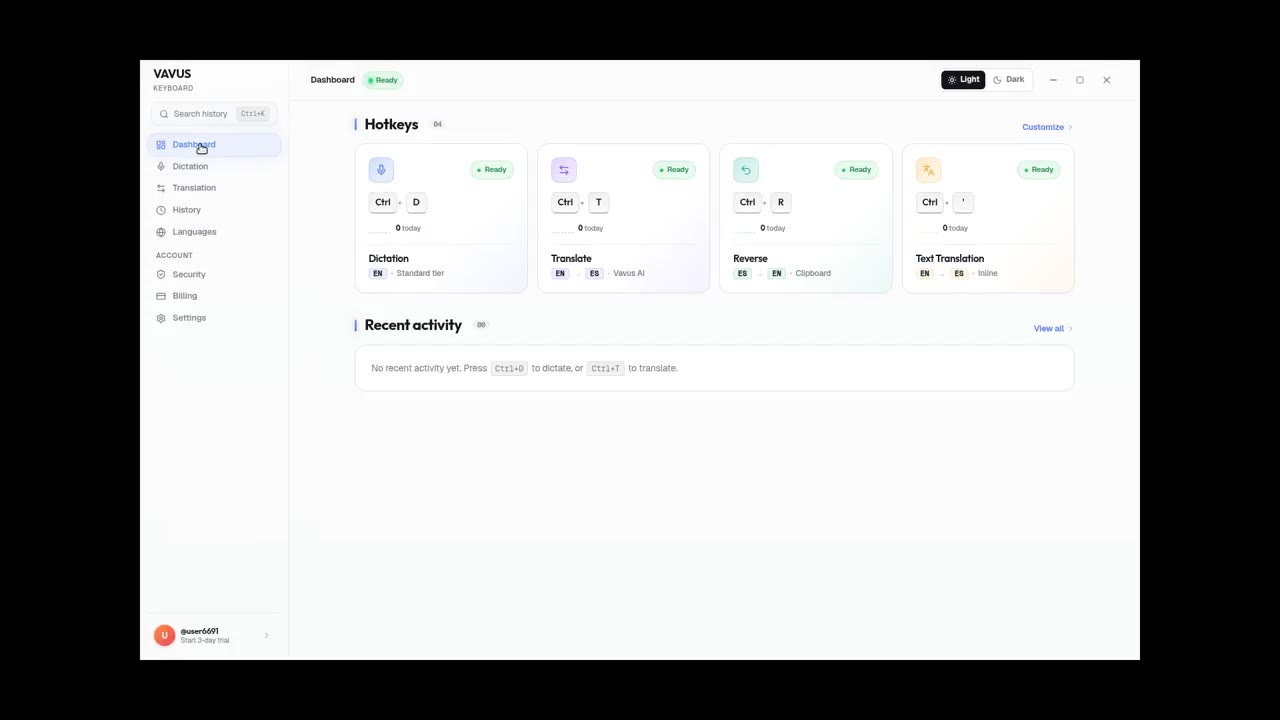
Vavus Keyboard desktop dictation — speak, get text
Press the hotkey. Speak. The transcribed text lands in your text field.
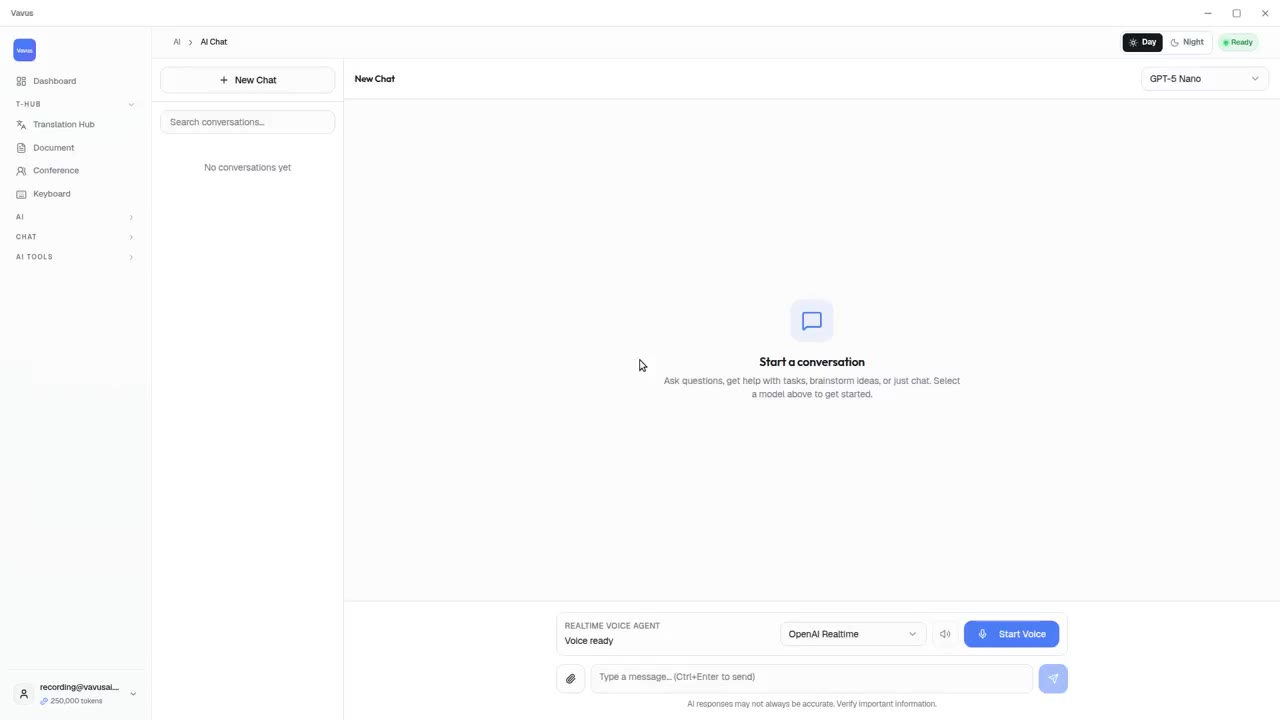
Vavus AI tools — AI Studio, documents, images, projects
Beyond live translation: AI chat, images, documents, and projects in one tab.
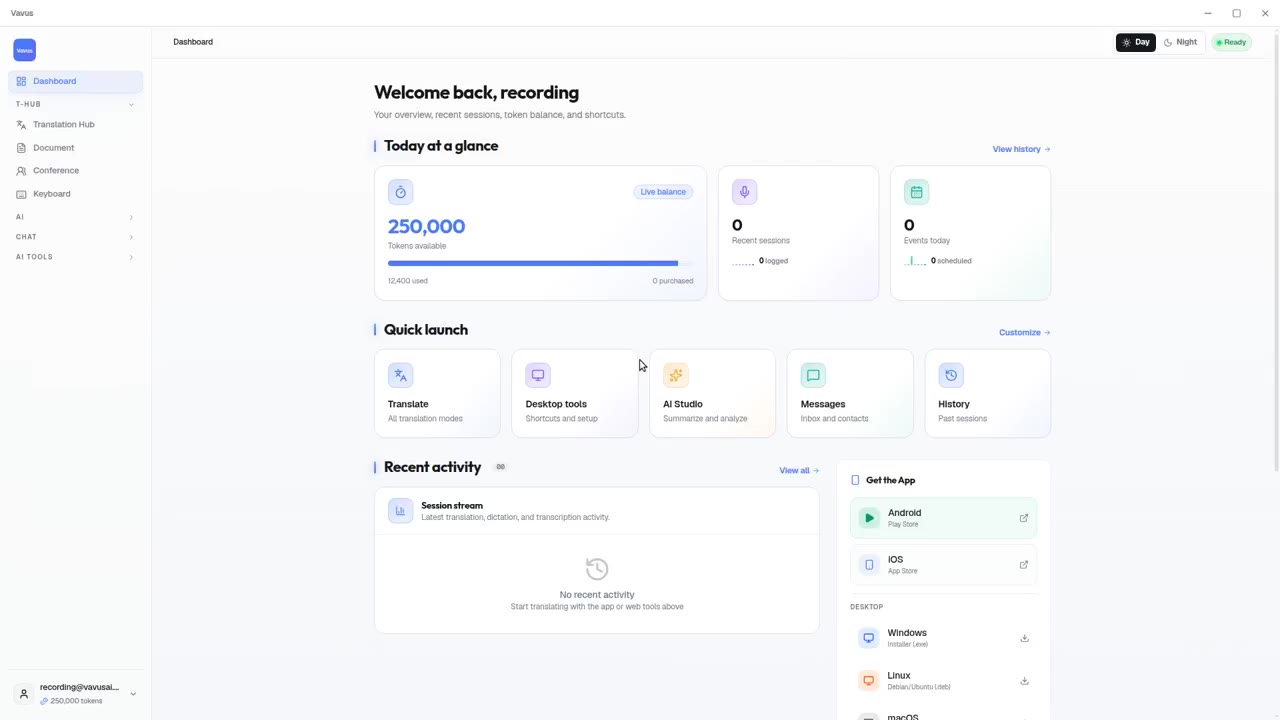
Vavus AI dashboard — your translation activity at a glance
Open Vavus AI. See what you translated, what is pending, what is next.